Install DB String Data Extension as a VIPM package from the NI Tools Network repository. The package integrates into LabVIEW palettes and provides full context help.
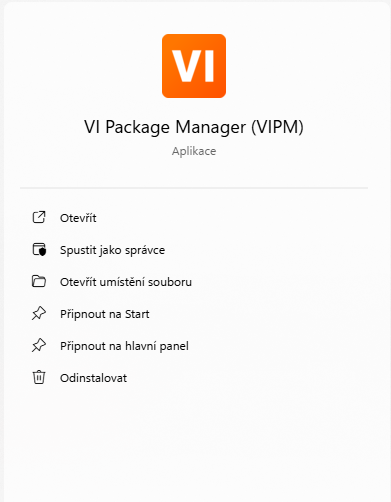
Download and install JKI VI Package Manager (VIPM) if it is not installed yet. VIPM is the standard way to install LabVIEW packages from the NI Tools Network and community repositories.
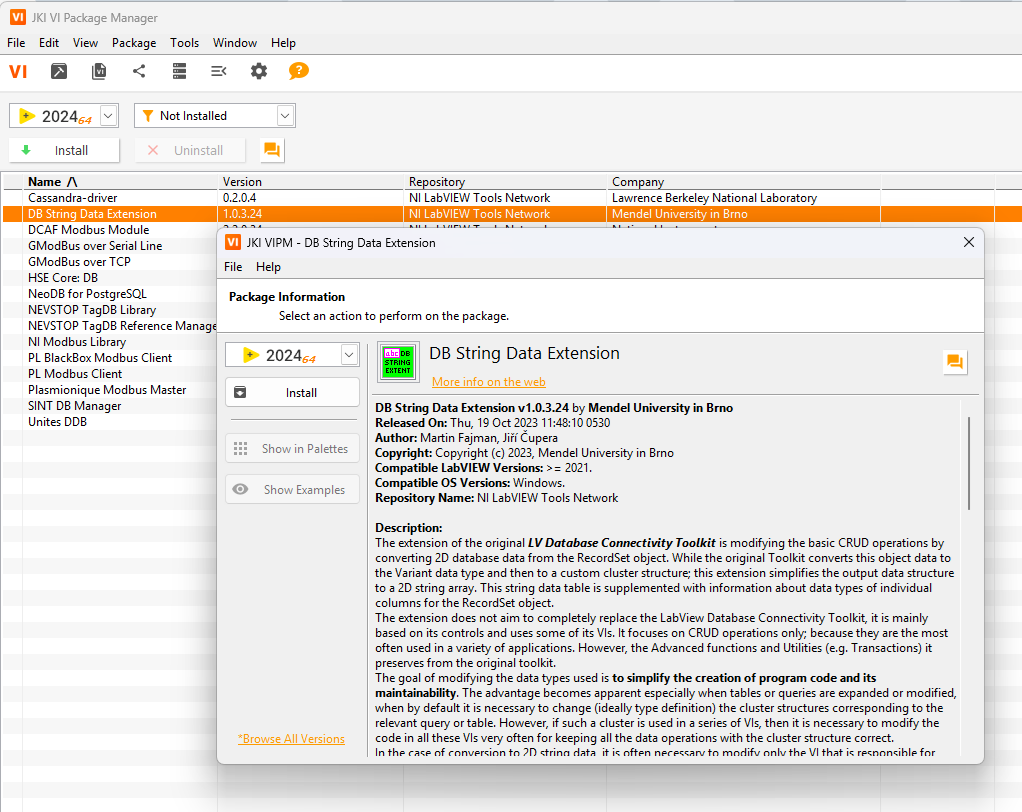
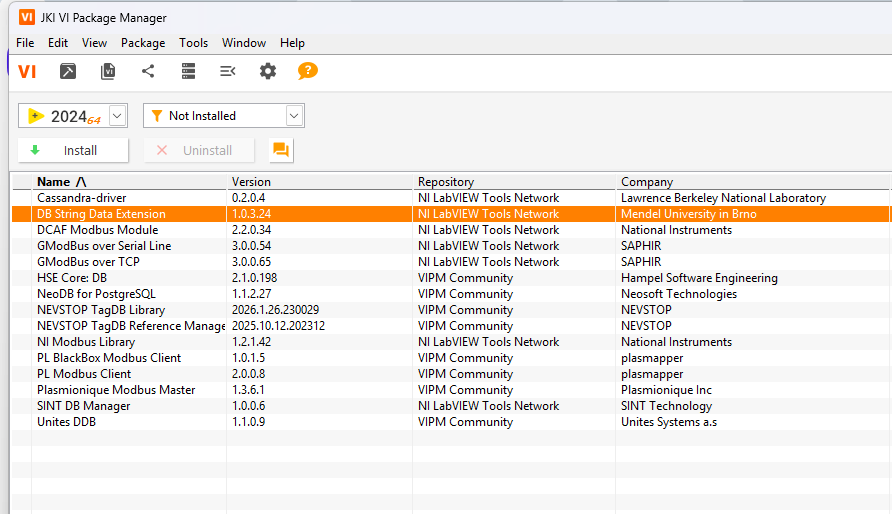
In VIPM, ensure the repository includes NI LabVIEW Tools Network. Search for DB String Data Extension.
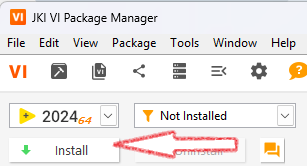
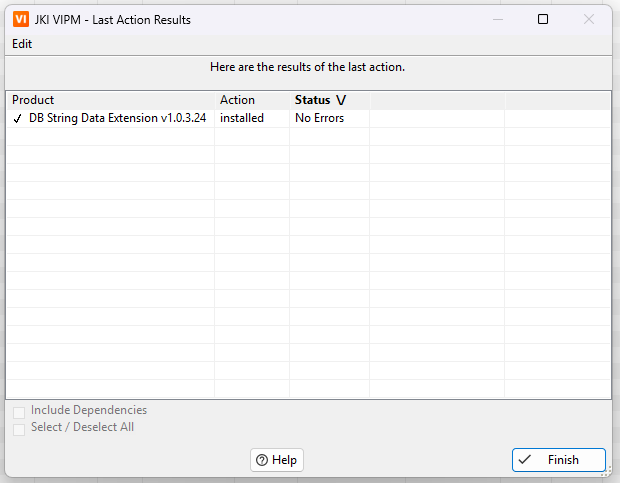
Select the package and click Install. Confirm the installation prompts. After installation, VIPM shows the result summary with “No Errors”.
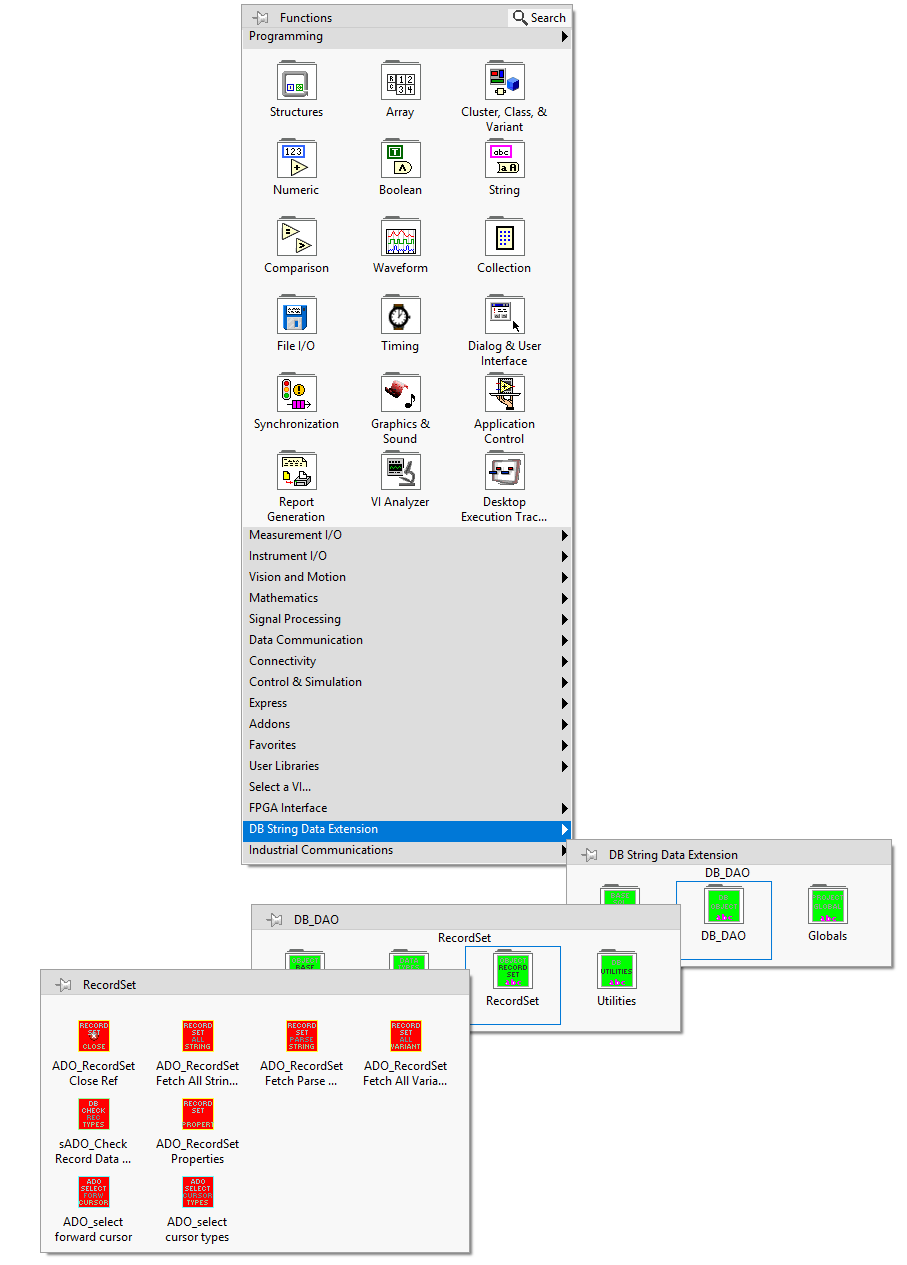
Open LabVIEW and verify that the DB String Data Extension palette is available. You should see the package palettes (e.g., DB_DAO / RecordSet / Utilities) in the Functions palette.
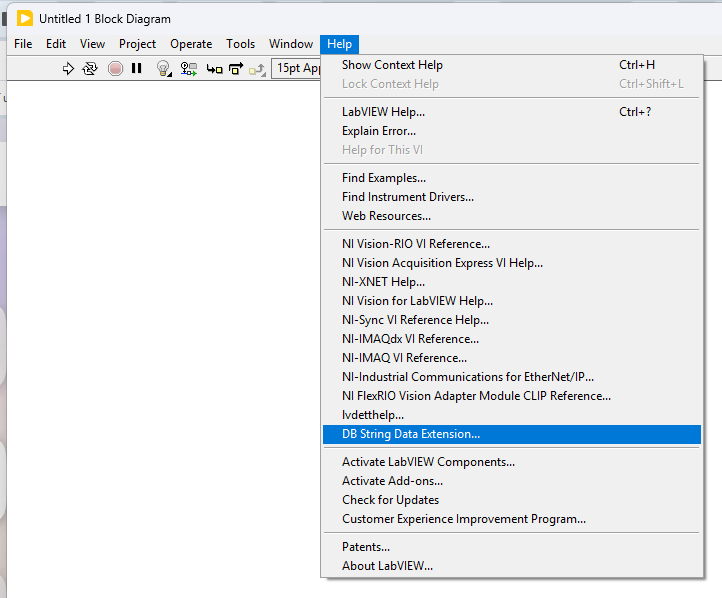
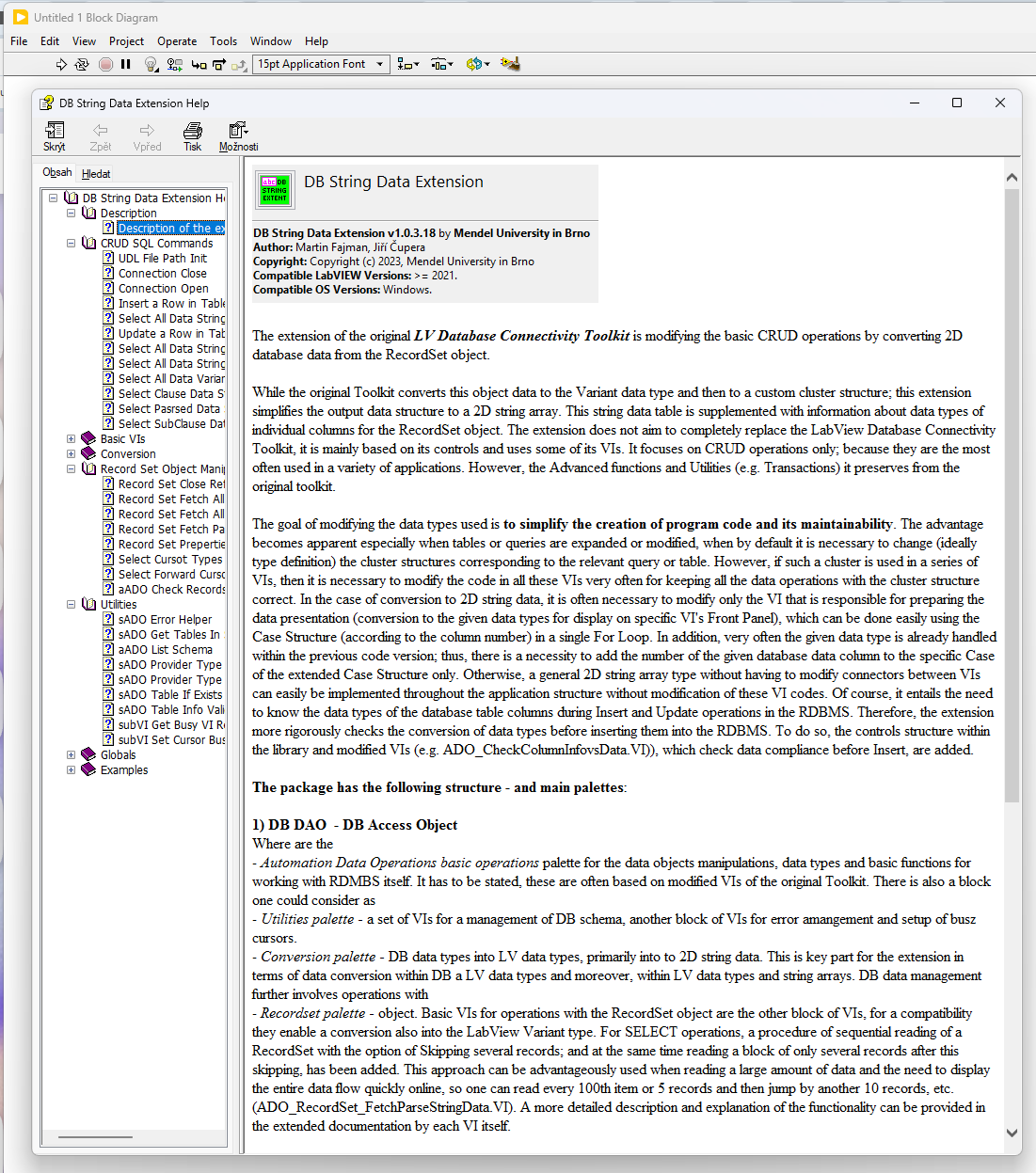
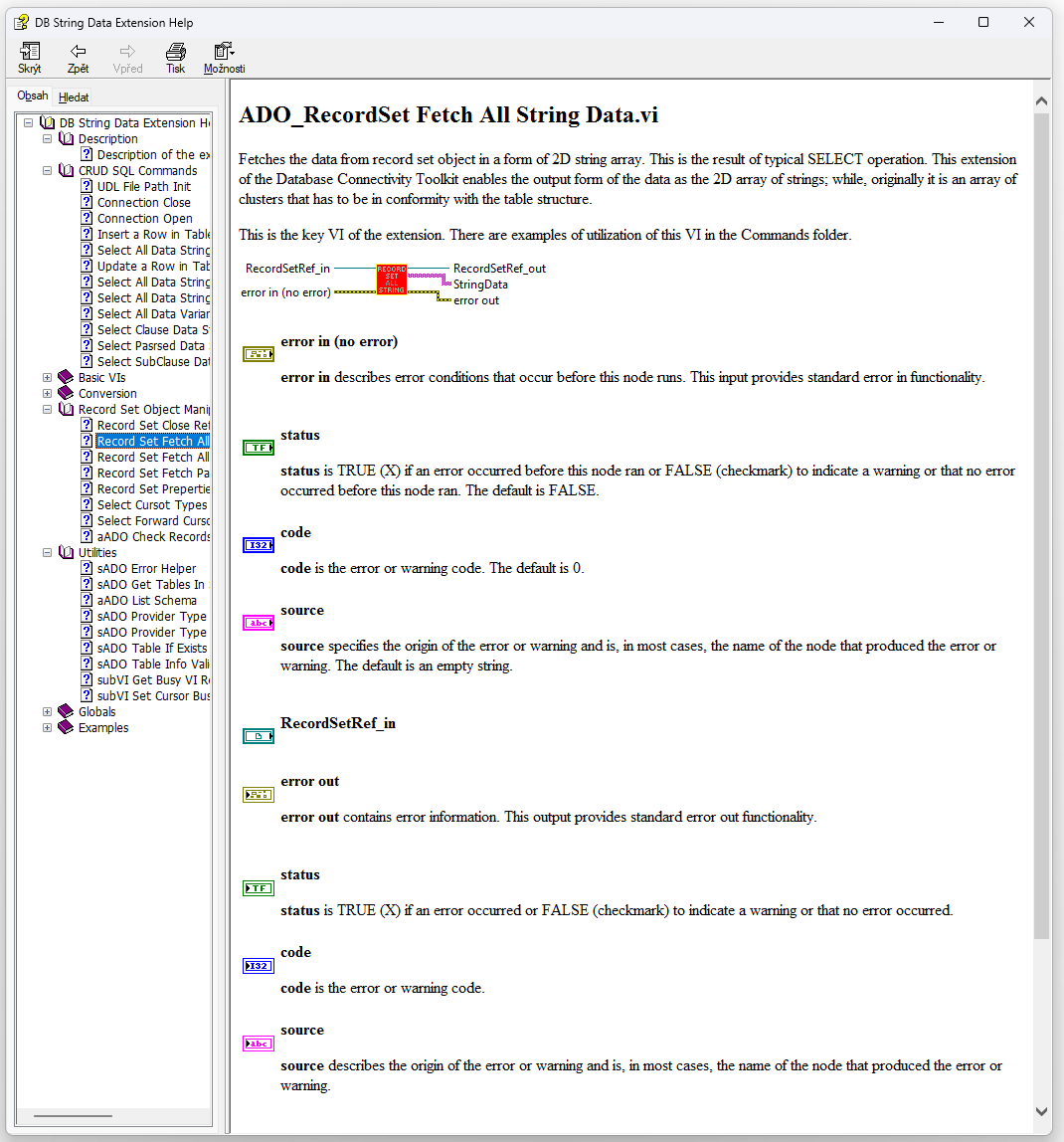
The package includes complete help documentation accessible from LabVIEW Help menu. You can open the documentation tree and read detailed VI descriptions.